It’s as easy as using a mini-app. No experience needed.
Liblib offers many free workflows for tasks regular image generators can’t handle, like face-swapping, dressing up models, adding lighting and backgrounds to product photos, and creating memes. You get free generations daily, and you can pay for more if needed.
ComfyUI is essentially an image generation program. Don’t worry about the details now:
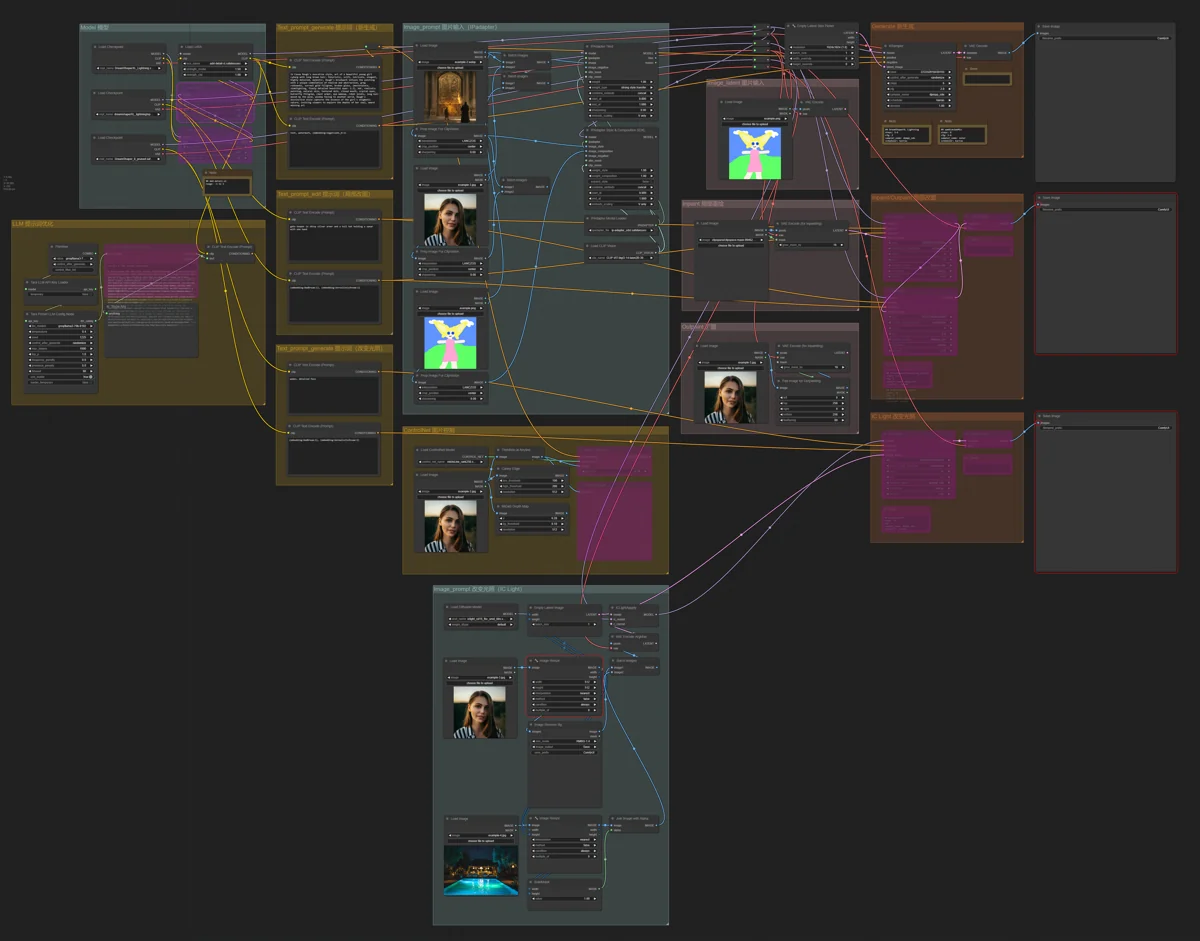
Liblib’s workflows are based on ComfyUI. You don’t need to know how to create them, but you should know how to use them. There are three common scenarios:
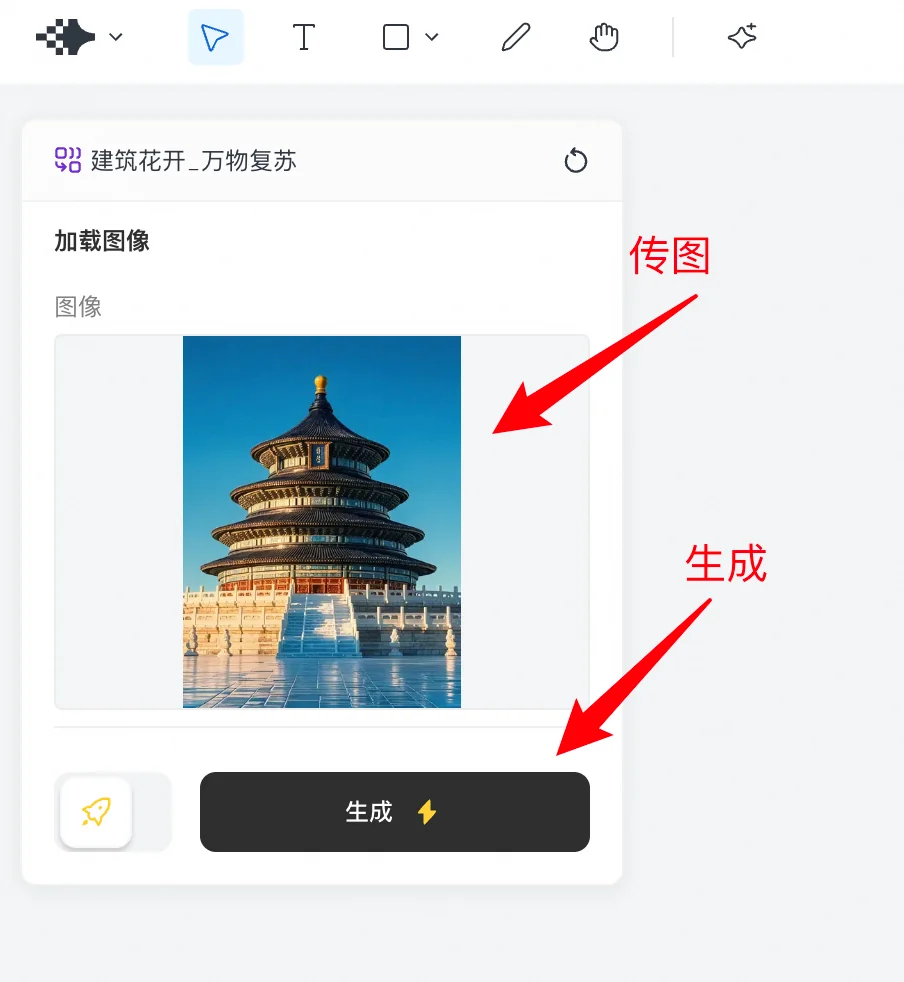
1️⃣ The workflow is packaged as an app (you’ll see a specific button)

Click it, and you’re set. It’s straightforward, and you won’t see the underlying program.
2️⃣ It’s not an app, and you see a light blue “Run” button

Clicking this takes you to the ComfyUI interface, a black screen that might take a moment to load. It can look complex, like a circuit board.
However, creators usually include instructions. These vary, so find and read them carefully. Here’s an example:
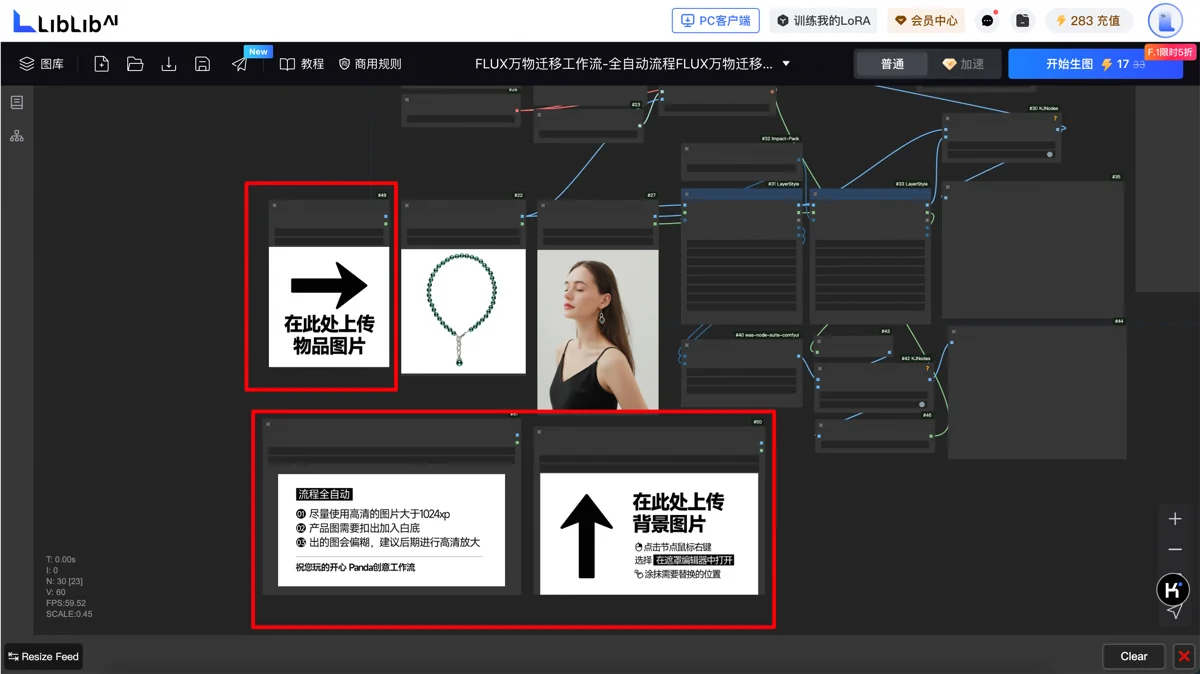
3️⃣ You see a light blue “View Workflow” button, but no instructions

This likely means the creator didn’t add instructions. Check if the workflow is overly complex.
Tip: Zoom with the mouse wheel, and drag by holding the spacebar.
If it seems simple, with few components, there’s hope. Find these two key node types:
- Image upload node: (look for the “choose file to upload” button):
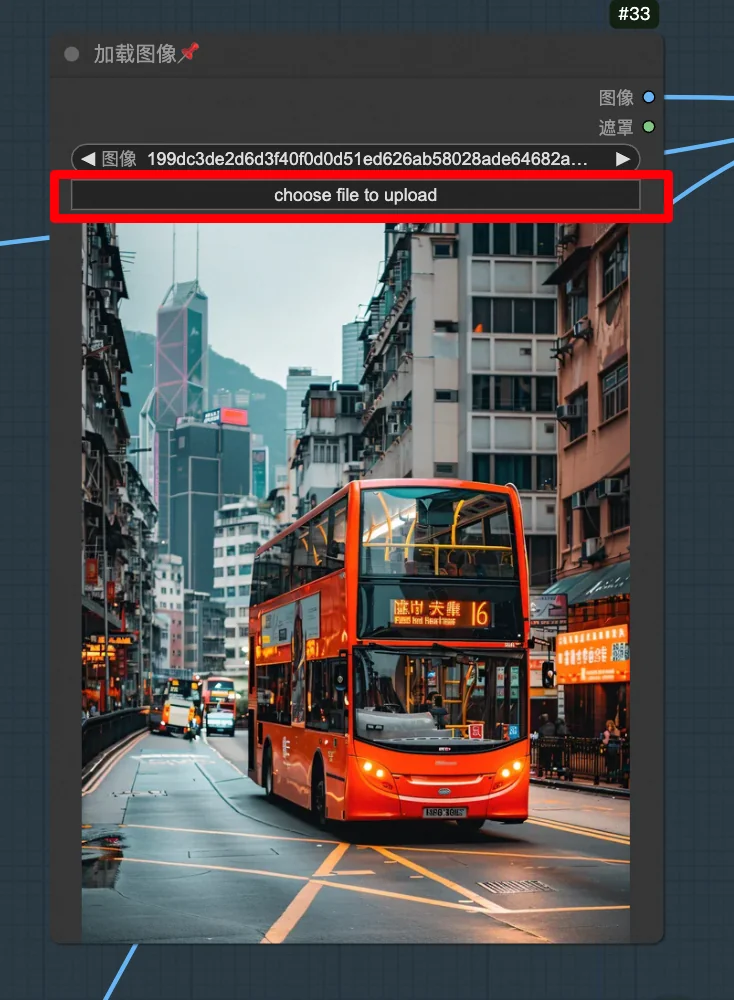
- Text input node: (look for a black input box for prompts):
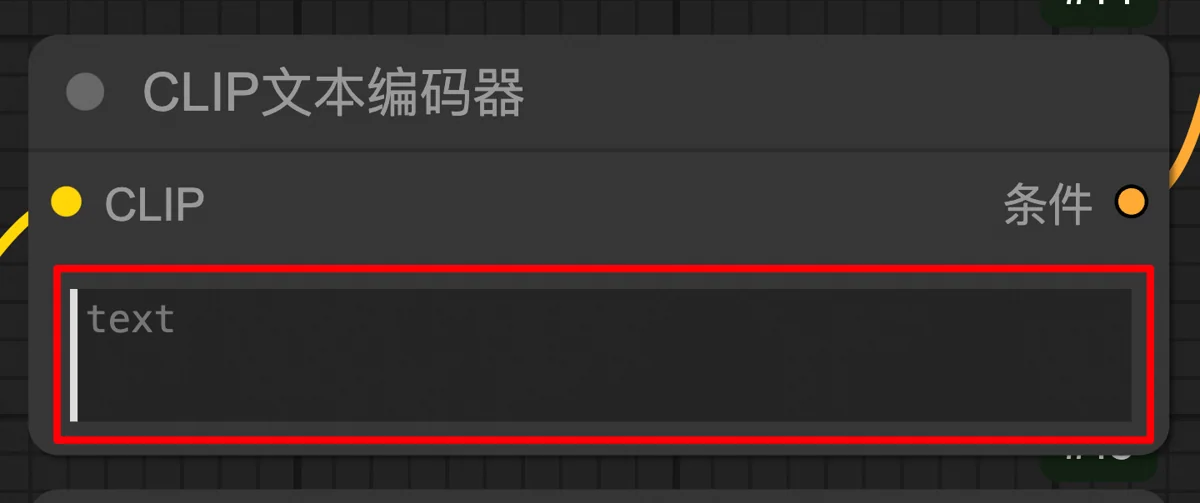
Upload images, write text, and click “Run.” It should work.
- Image upload node: (look for the “choose file to upload” button):
If it’s too complicated, with many image and text nodes, find a similar workflow with instructions.
⚠️ Troubleshooting Errors
You might encounter errors:
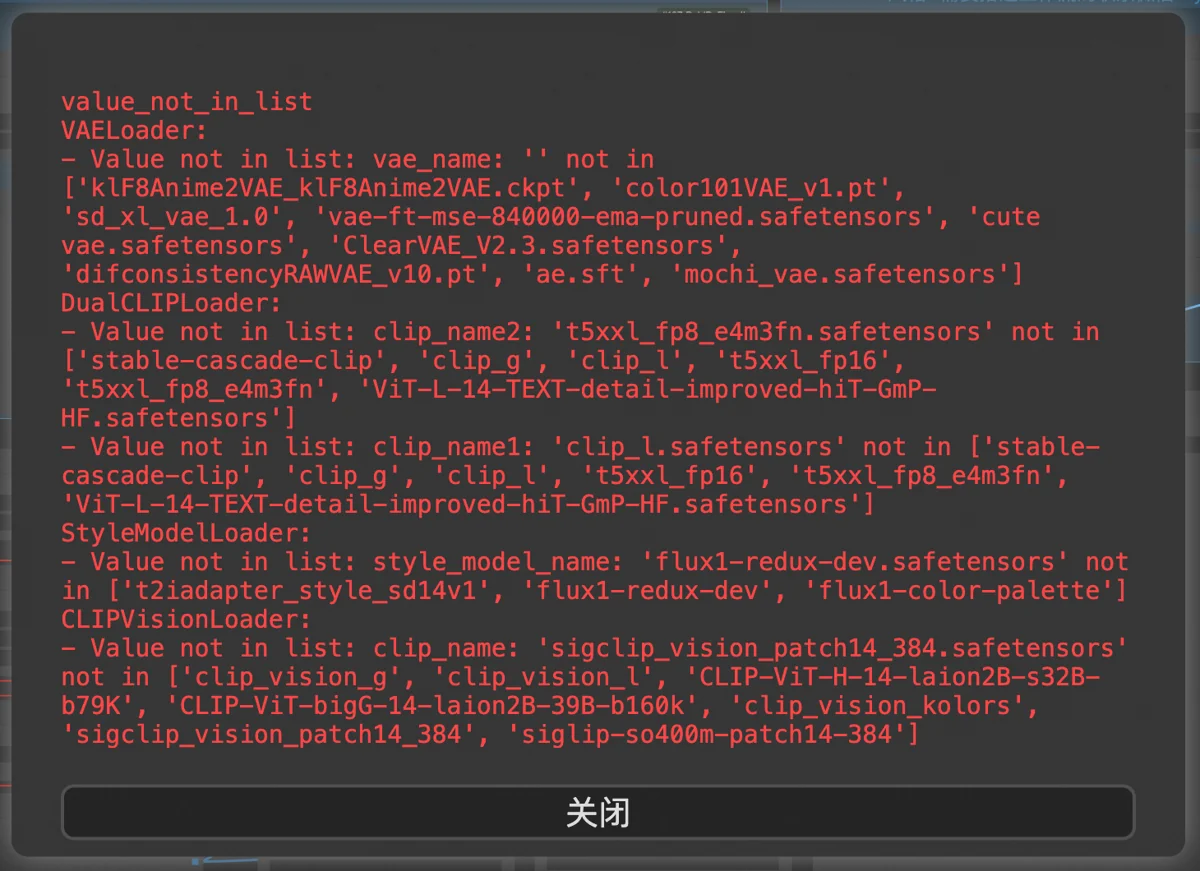
Don’t worry! Close the error; the program will highlight the problem node in red:
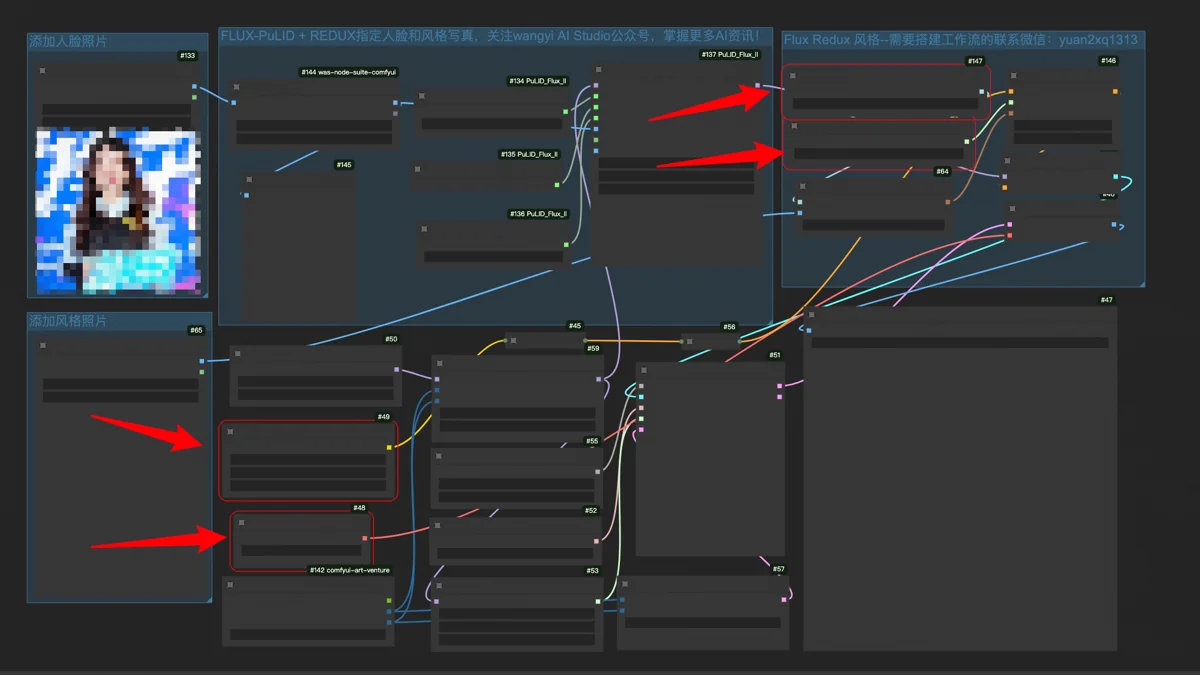
Zoom in. It’s usually a node for loading an AI model:
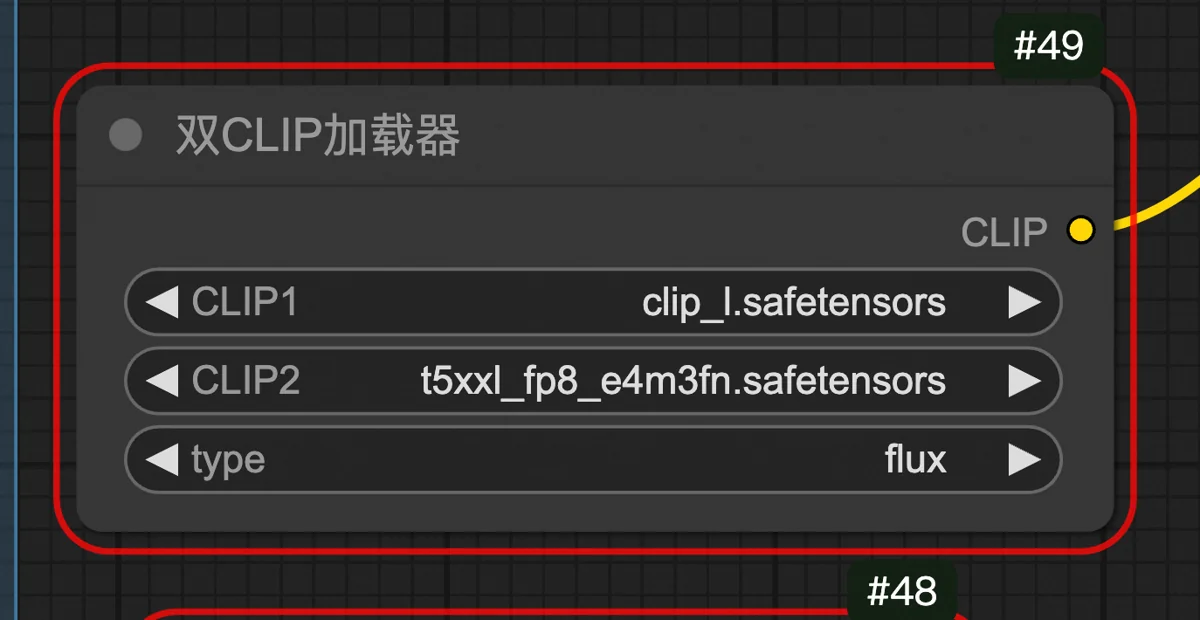
The creator likely used their local file names for models. On Liblib, the names might differ, causing the node to fail.
Here’s the fix: Note the names of each option, especially the part before the decimal (the model name). Click on each model and select the closest match from the dropdown (exact matches are best):
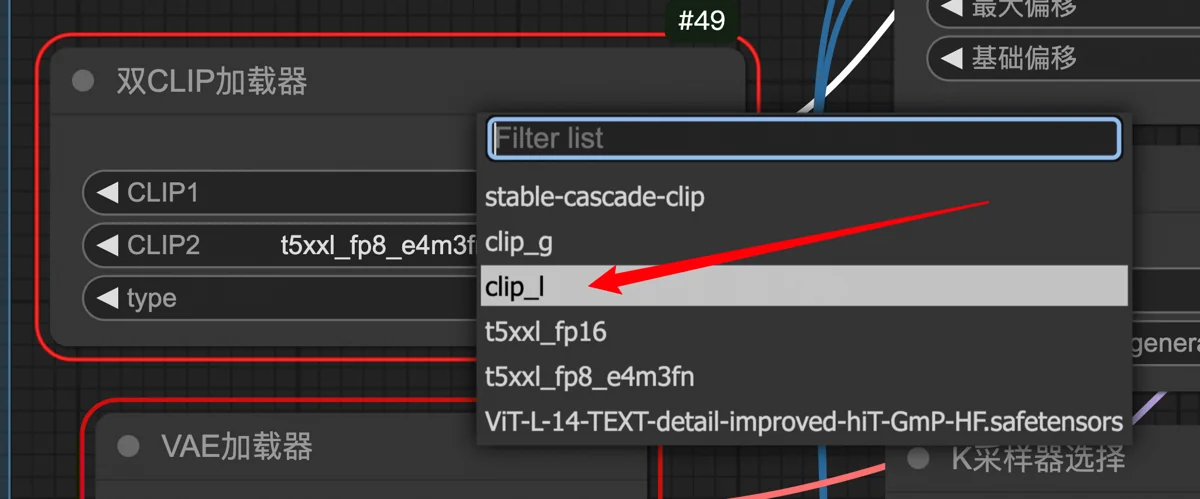
Reselect models for all faulty nodes, then run it again.
If you can’t find a match, search on Liblib’s Model Plaza, add it to your library, and it’ll appear in the dropdown.
This solves most errors.