This guide brings powerful AI browsing capabilities to the average user. If you are an AI power user, this might be old news, but feel free to share it with your non-tech friends.
First, look at the result: You chat with the AI, and it drives your browser to finish tasks on the web.
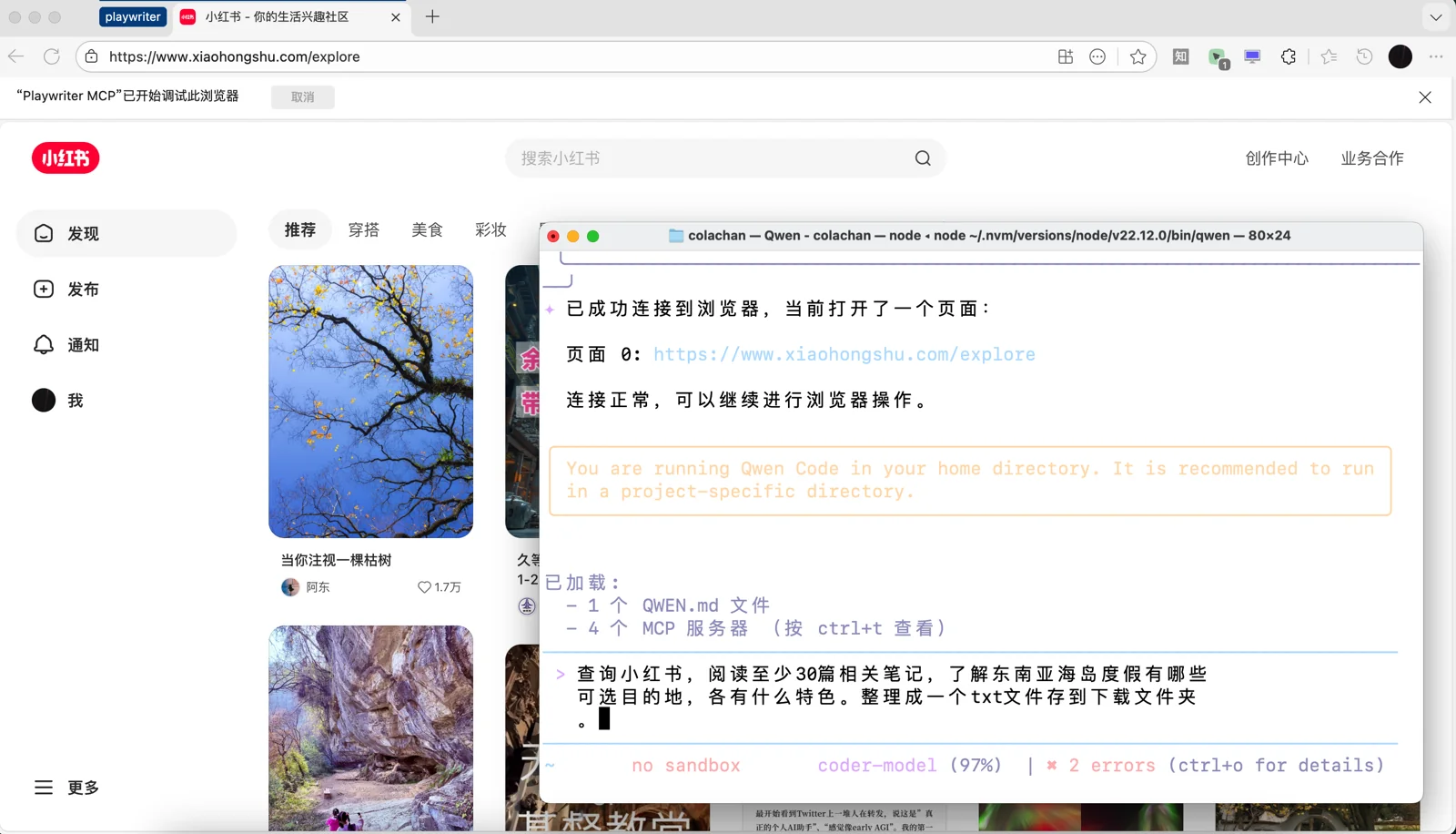
For example, I gave it this command:
Search RedNote (Xiaohongshu), read at least 30 related notes, and identify available island vacation destinations in Southeast Asia along with their unique features. Compile the findings into a txt file and save it to the Downloads folder.
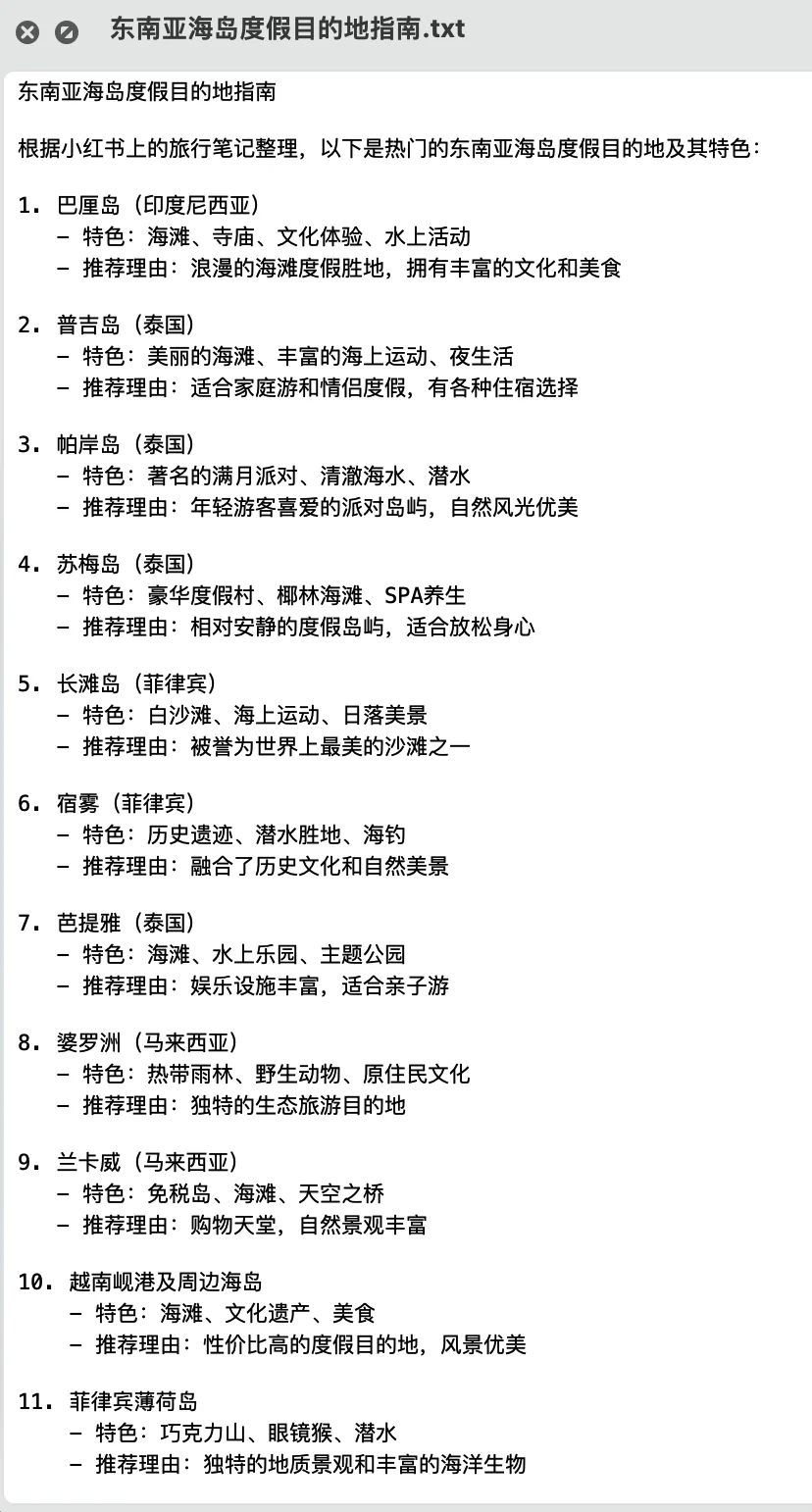
The results are accurate and reliable because they come from curated sources rather than the messy open web. This research serves as a perfect starting point for trip planning.
The advantage of this setup over various “AI Browser” products is the ability to operate both the browser and local files simultaneously. Local files are your world; the browser is the whole world. Connecting them opens up massive possibilities. Many routine jobs involve repeatedly uploading or entering data into backend systems—perfect tasks to delegate to AI.
No need to install a new browser. Add AI powers directly to the Chrome/Edge you already use. For users who don’t know coding or how to bypass firewalls, this is the optimal solution.
Configuration
Interested? Take a deep breath and let’s get started. The setup is a bit complex, but you only have to do it once.
Step 1: Register an AI Account
First, sign up for a Qwen Chat account. The free AI power comes from the Qwen model:
It’s not unlimited, but since you aren’t using it for heavy coding, the daily free quota is practically inexhaustible.
Step 2: Install Infrastructure
Download the Node.js installer. This is the foundation required for the AI and browser tools to run:
https://nodejs.org/en/download
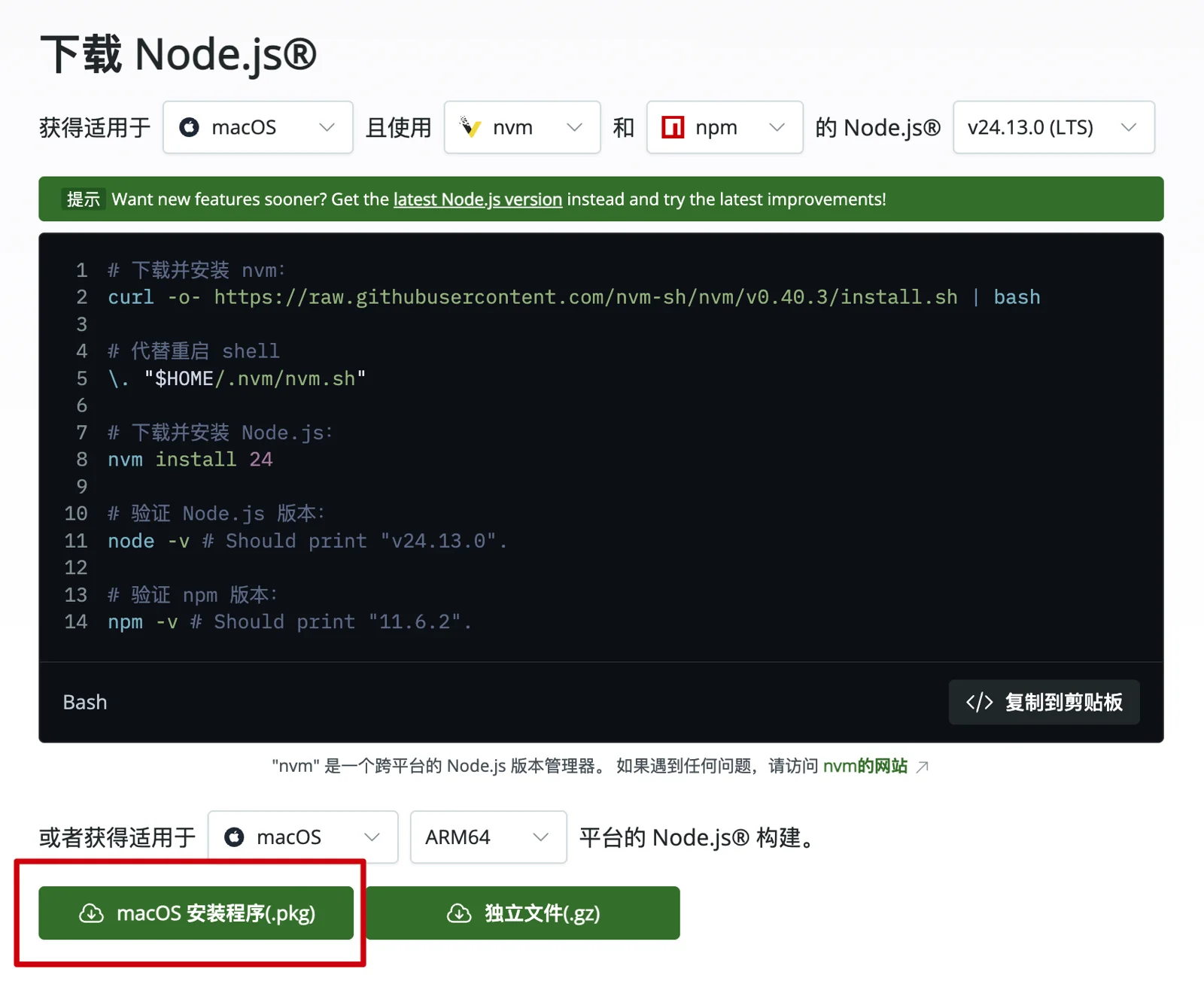
Ignore the code on the page. The download button is there and will automatically pick the right installer for your OS.
Step 3: Install AI
This step involves the intimidating command line. You have to get over this mental block because actual usage happens here too. Once you get used to it, you’ll feel like Neo in The Matrix—your colleagues won’t have a clue what magic you’re using. Plus, once past this, you get to watch the AI configure itself.
Launching the command line varies by OS:
- Windows: Press
Win + R, typepowershell, and hit Enter. I recommend right-clicking the icon in the taskbar and selecting “Pin to taskbar” for next time. - Mac: Press
Command + Space, typeTerminal, and hit Enter. Right-click the dock icon and choose “Options > Keep in Dock”.
The rest is the same. Copy the following command, paste it in, and hit Enter to install:
npm install -g @qwen-code/qwen-code@latest

You’ll see a spinning cursor. When you see something like “added 6 packages in 38s”, it’s done.
Step 4: Let AI Configure Itself
Once the AI is installed, let’s use it to finish the rest.
Type qwen in the command line and hit Enter. The first launch asks for authentication—choose the free option. It will open your browser to log in via Qwen. Once done, switch back to the command line.
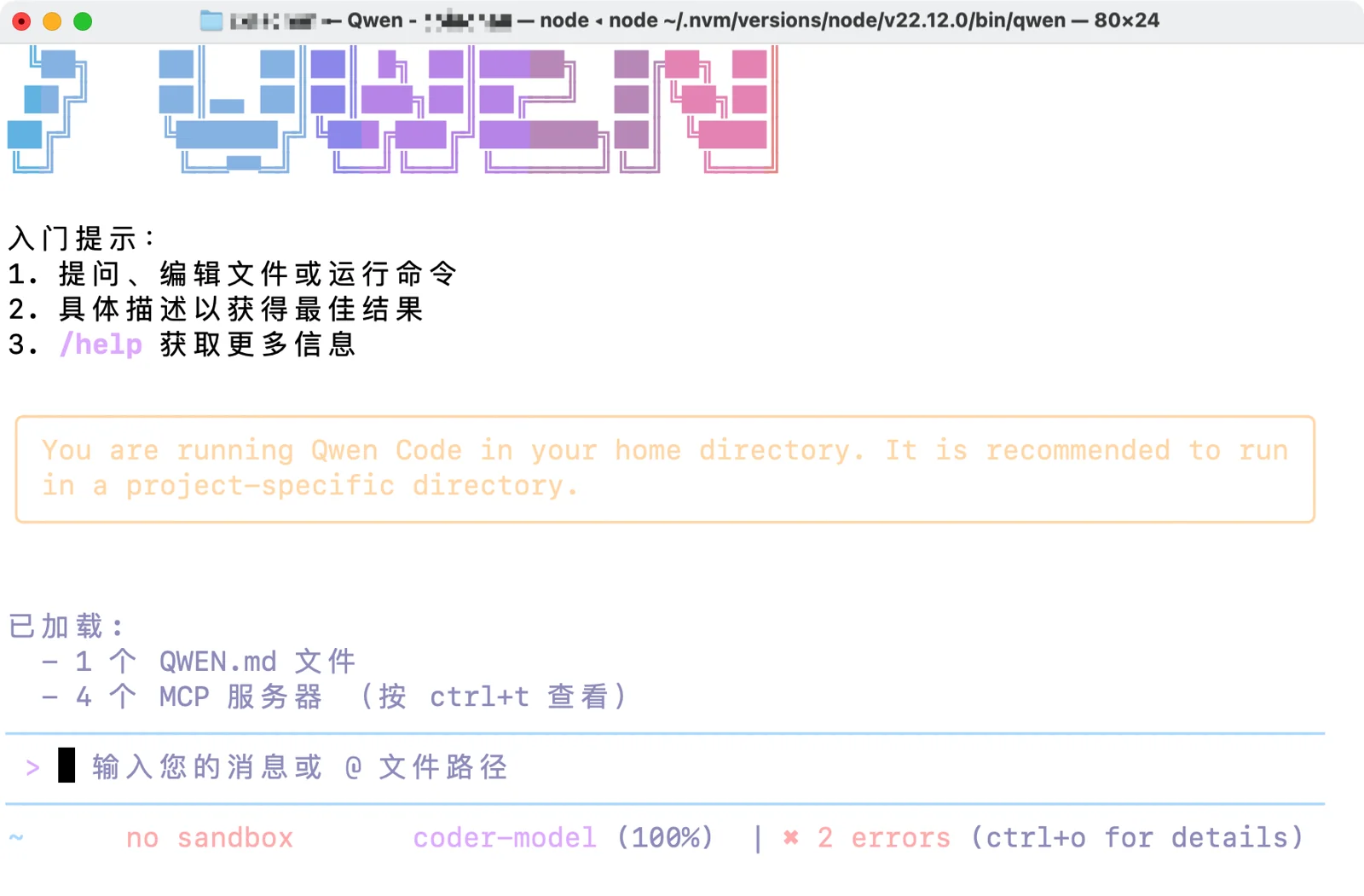
On Mac, qwen looks like the screenshot. On Windows, it’s black. Don’t panic, here’s the layout:
- Above the yellow box is the chat history.
- Pull the window larger so you can see more history.
- The area between the blue lines is the input box. Type there and hit Enter to send.
- For a new line without sending:
Ctrl + Enter(Windows) orOption + Enter(Mac). - If the AI misunderstands or you change your mind, press
Escto interrupt. - Note: This AI is blind. You can’t paste screenshots. It understands and manipulates webpages via code.
Now, copy this block of text and hit Enter. The AI will handle the initialization:
You are Qwen code. Your config directory is `~/.qwen`. Your task is to complete the initial setup for a new user and install necessary tools:

**Step 1**
Find settings.json in the config directory.
If on Windows, add this config:
{
  "mcpServers": {
    "playwriter": {
      "command": "cmd",
      "args": [
        "/c",
        "npx",
        "-y",
        "playwriter@latest"
      ]
    }
  }
}
If on Mac, add this config:
{
  "mcpServers": {
    "playwriter": {
      "command": "npx",
      "args": ["-y", "playwriter@latest"]
    }
  }
}

**Step 2**
Create a global custom prompt file QWEN.md in the config directory with this content:
You are a browser/local dual-environment automation assistant capable of controlling the browser and local filesystem.
Whenever the user says "use browser" or "in the browser", it refers to using playwriter mcp. Check connectivity first. Confirm you can access the current page via this mcp and report back. If unable to connect, remind the user to check if the browser extension icon is active.
When operating the browser, if elements are hard to find or click, consider modern web complexities. Sites may use dynamic loading or have modal overlays. Use URL structure analysis and other methods to troubleshoot.

**Step 3**
Download this browser extension to the system Downloads folder:
https://c2.crxsoso.com/crx/blobs/AV8Xwo5LQcmScQn08gpIRs0miQ6Mvevy3FDdb3iyyRDSlUS4Is6dTPfvvrNKjpjmy6VchgCS0p00J8Ooz9b624lgzyndHDatcaUxZMR81-HRtiLwbAypGrQJMBbmWmZ7nV0AxlKa5Z_50eB2pakXBz6YCRWobqy6rTRq/JFEAMMNJPKECDEKPPNCLGKKFFAHNHFHE_0_0_67_0.crx?ext=crx&filename=Playwriter%20MCP%200.0.67&type=dl

**Step 4**
Check the default system browser and open its extensions management page.
For Chrome, open `chrome://extensions/`, etc.

**Step 5**
Open the system Downloads folder using File Explorer or Finder.
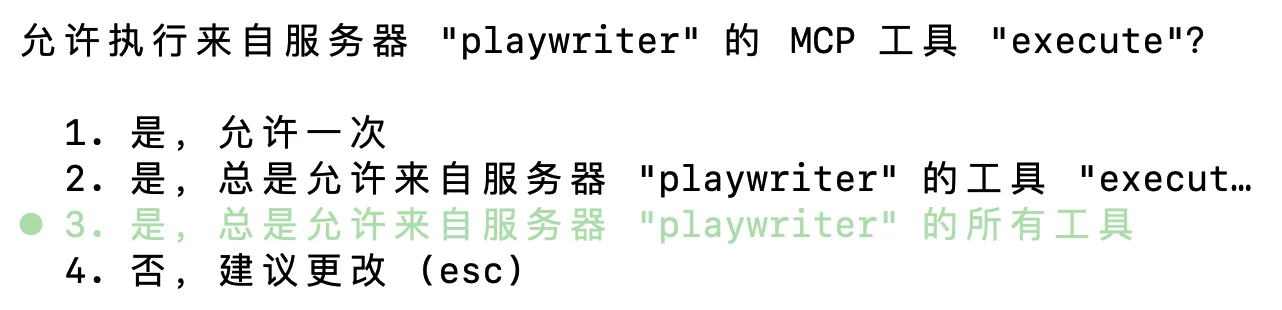
During this process, the AI will ask for permission multiple times. Allow everything. I recommend choosing the second to last option (“Always allow…”) to minimize nagging.
Step 5: Install Browser Extension
The AI needs a plugin to control your main browser so it can use your logged-in accounts.
On the extensions page opened in the previous step, toggle “Developer mode” on. (Top right in Chrome; left sidebar in Edge).
Switch to the Downloads folder, drag Playwriter_MCP_xxx.crx into the browser extensions page. Done.
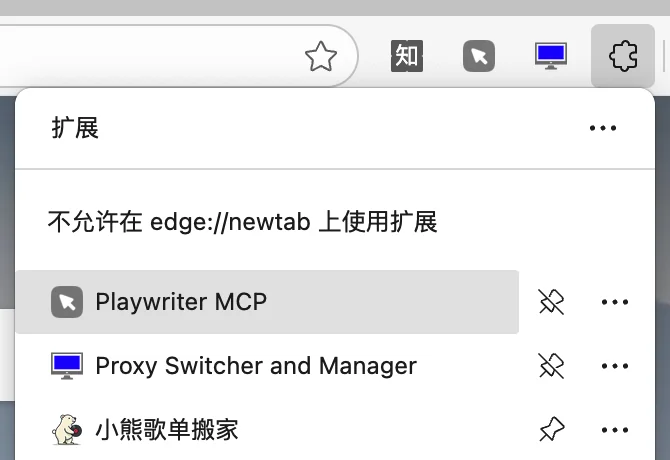
Finally, pin the “Playwriter MCP” extension to your toolbar for easy access.
Usage
Using it is simple.
Open the command line, type qwen.
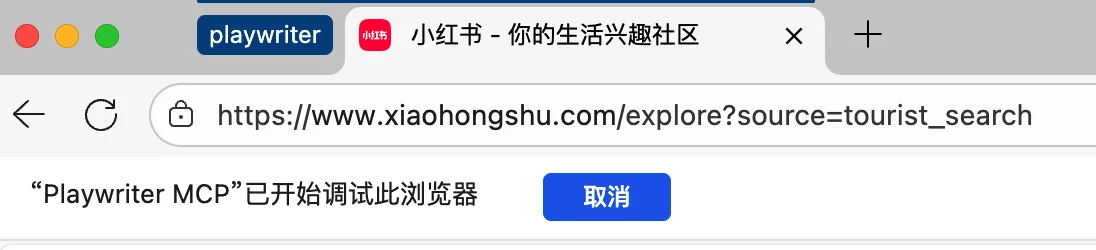
Open a webpage, click the cursor-like plugin icon. The page will be framed in a “playwriter” tab group—this is the AI’s playground.
Send this to the AI:
Use browser, check the current page, and confirm connection.
If it says yes, start commanding it. If it hits a CAPTCHA, help it out.
If it can’t connect, ask the AI to fix it. If it lacks permissions, it might give you commands to run manually. Just ask if you don’t understand.
Click the icon again to disconnect.
Tip: Training the AI
One last trick. Complex pages (like travel booking sites with dynamic loading) can baffle the AI. Simple, “ugly” internal system pages are often easier for it.
If the AI succeeds—even partially—ask it to review the session:
Review the operation. Compile "Goal", "Key Steps", "Pitfalls", and "Solutions" into a Markdown file named "AI Browser Manual.md" on the Desktop.
Keep this file. Next time, tell the AI to read it before starting the task. If it learns something new, ask it to update the manual.
This is the essence of “skills.” Mastering this manual skill-building puts you ahead of 99.7% of people.